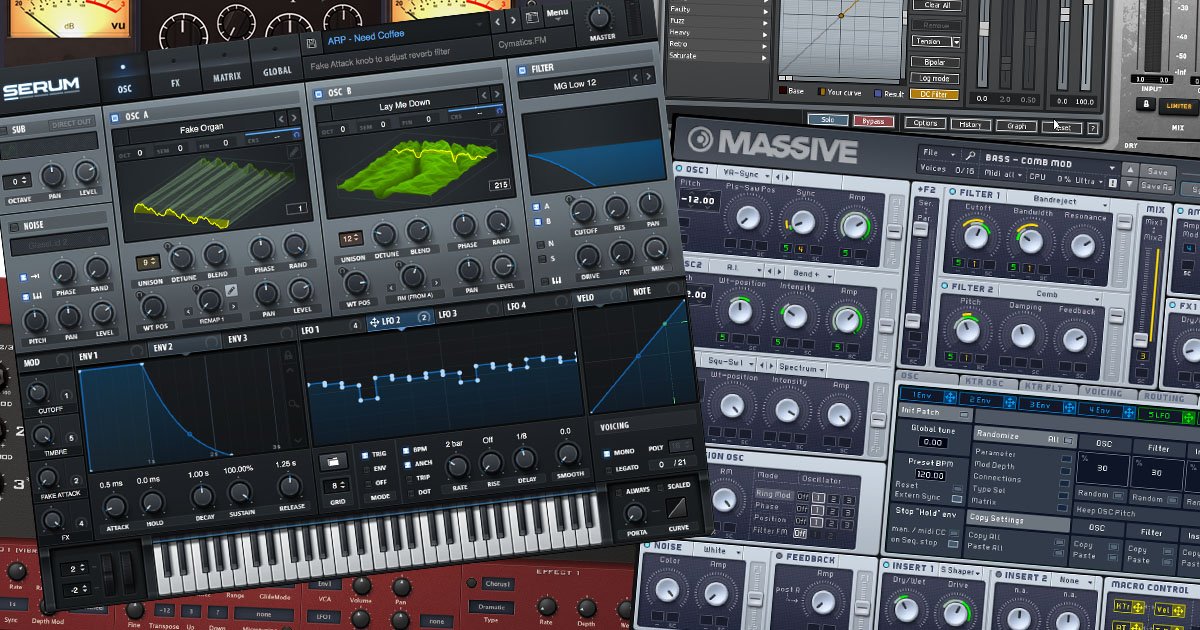
VST For MIDI Keyboards: Install, Scan, Map Controls, And Play Smoothly
If your MIDI keyboard is plugged in and you’re still hearing nothing (or just a sad default beep), you’re not alone. The confusing part is that your keyboard can feel like an “instrument,” but it’s often acting more like a remote control-sending instructions, not sound.
At MultiplayerPiano.com, the goal is simple: get you from “What do I even download?” to great, playable soundswith a clean setup you can repeat. You’ll learn what VSTs actually do, which types match your goal, how to install them safely, and how to fix the usual headaches (no sound, plugins not showing up, latency).
Quick Answer (Key Takeaways)
- A MIDI keyboard usually doesn’t create sound-it sends performance instructions. The MIDI Association is clear: MIDI is not audio.
- A VST plug-inruns inside a host (usually a DAW) and can generate sound(instruments) or process sound(effects). (Steinberg’s VST documentation explains the host/plug-in relationship.)
- Choose VSTs by your goal: piano, synth, drums, orchestral, MIDI tools(chords/arps), then add effects.
- Download from official sourcesor trusted stores-CISA’s guidance consistently favors original, trusted software sources.
- If playing feels delayed, it’s latency: lower buffer size and use a proper driver; Steinberg describes ASIOas a low-latency, high-performance audio standard.
VST For Midi Keyboards - What You Actually Need To Hear Sound
You’ll leave this section knowing exactly why “no sound” happens and what minimal setup fixes it. Once you understand the signal chain, every VST choice gets easier.
MIDI Vs Audio (Why Your Keyboard Is Silent Without Software)
MIDI is a description of performance-what note you played, how hard, how long, and which controls moved. It isn’t sound. That’s why a controller can be “working” (MIDI activity visible) while your speakers stay silent.
If you only want to hear sound withoutinstalling anything, an online pianocan be a quick practice option-but it won’t replace a VST setup in a DAW.
So if your keyboard has no built-in speakers/sounds, pressing keys won’t produce audio until you route MIDI into something that generates sound, like:
- A virtual instrumentinside a DAW (piano/synth/drums), or
- A hardware sound module(less common for beginners today)
The 3 Plug-in Types That Matter: VST Instruments, VST Effects, MIDI FX
Here’s the simplest mental model that prevents most beginner frustration:
- VST instrument (VSTi):creates sound from MIDI (pianos, synths, drums).
- VST effect (VSTfx):processes audio (reverb, EQ, delay, compression).
- MIDI FX:changes MIDI before it hits the instrument (arps, chords, humanize, scale locks).
Steinberg’s VST docs explain this core idea: the host provides streams (events/audio), and the plug-in processes them.
Quick Start Setup (DAW/host + Instrument + Audio Output)
If you want sound today, aim for this minimal chain:
- Connect your MIDI keyboard (USB is typical).
- Open a DAW (or plug-in host).
- Create an instrument track and load a VST instrument.
- Select your keyboard as MIDI input.
- Confirm your audio output (headphones/speakers/interface).
Takeaway:Once you treat MIDI as “instructions,” the next step becomes obvious: load a sound generator-then we can choose the right one.
How To Choose The Right VST For Your MIDI Keyboard (goal-first)
You’ll leave this section with a fast way to pick the right plugin category without getting lost in endless “best VST” lists. The win is choosing fewer, bettertools that match what you want to play.
“Pick Your First VST” Decision Flow
- Decide your main goal: piano / synth / drums / orchestra / songwriting tools.
- Choose the plug-in type: VSTifor sound, MIDI FXfor note tools, VSTfxfor polish.
- Confirm compatibility: your DAW must support the format (commonly VST3; macOS may also use AU; Pro Tools uses AAX).
- Choose one plugin that fits your computer: lightweight first, huge libraries later.
- Install safely, scan, and map your controls.
A Quick Starting Matrix (2-column)
| Your goal | Start with |
| Realistic piano | Piano VST instrument (+ reverb later) |
| Modern synth sounds | Synth VST instrument |
| Finger drumming / beat making | Drum VST instrument or drum sampler |
| Film/game textures | Orchestral library/sampler instrument |
| Bigger harmony fast | MIDI FX (chords/arps/scale tools) |
If you’re unsure between two choices, decide what you’re optimizing for:
- Feel:velocity response, pedal behavior, and how naturally the piano keystranslate your touch.
- Speed:quick presets, fast loading, and easy browsing.
- Control:simple MIDI Learn, clear mapping for knobs/faders, and deep modulation when you want it.
- Performance:CPU/RAM/disk footprint—especially important for big sample libraries.
Takeaway:Choose by goal first, then plugin type-next you’ll get a curated shortlist you can actually trust.
List Of 29 VSTs For MIDI Keyboards (curated By Use-case)
You’ll leave this section with concrete names to research-without turning it into a shopping spiral. The point isn’t to collect plugins; it’s to find onethat fits your hands and your music.
How I Chose These (so You Can Trust The Shortlist)
- Real-world usability:fast to load, easy to play, predictable results.
- Ecosystem strength:strong documentation and long-term support reputation.
- Beginner-to-intermediate growth:useful now, not only after months of learning.
- Performance range:options from lightweight to heavyweight libraries.
- Safe availability:easy to get from official sources (aligning with CISA-style guidance).
Important: plugin formats and system requirements can change. Treat specs as “verify on the official product page,” especially after major OS/DAW updates.
Piano VSTs (starter Picks + Why You’d Choose Each)
1. Pianoteq
- Type:Piano VST instrument
- Engine:Physically modeled (no giant sample library).
- Pricing:Paid (multiple editions).
- Best for:Expressive playing and low disk footprint; great if you dislike huge installs.
- Performance note:Usually disk-light; CPU depends on polyphony/quality settings.
- Website:Pianoteq
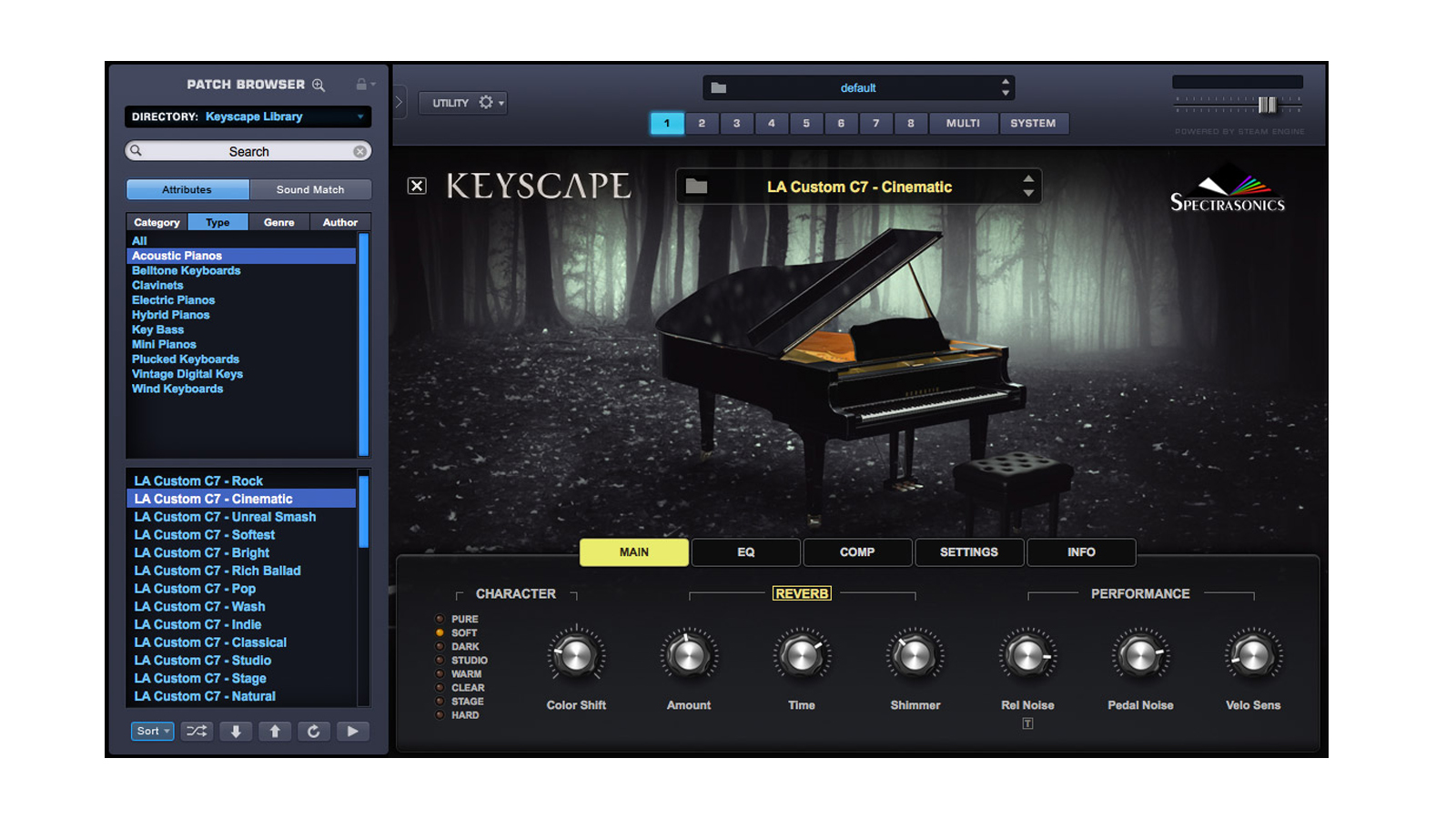
2. Spectrasonics Keyscape
- Type:Piano/keys VST instrument collection
- Engine:Sample-based keyboard library (pianos + classic keys).
- Pricing:Paid.
- Best for:One “keyboardist” plugin that covers many staple sounds.
- Performance note:Disk-heavy by design; works best with SSD storage.
- Website: Spectrasonics Keyscape
3. S Native Instruments Kontakt Piano (e.g., NOIRE / The Grandeur)
- Type:Piano libraries hosted in Kontakt/Kontakt Player
- Engine:Sample libraries inside the Kontakt ecosystem.
- Pricing:Paid libraries; Kontakt Player is widely supported in major DAWs.
- Best for:Players who want realistic pianos anda future path into more instruments.
- Performance note:Disk usage varies by library; RAM use depends on mic positions/patch design.
4. XLN Audio Addictive Keys
- Type:Piano VST instrument
- Engine:Sample-based keys designed for quick playability.
- Pricing:Paid (often modular).
- Best for:Beginners who want “good sound fast” and straightforward browsing.
- Performance note:Typically moderate footprint and stable performance.
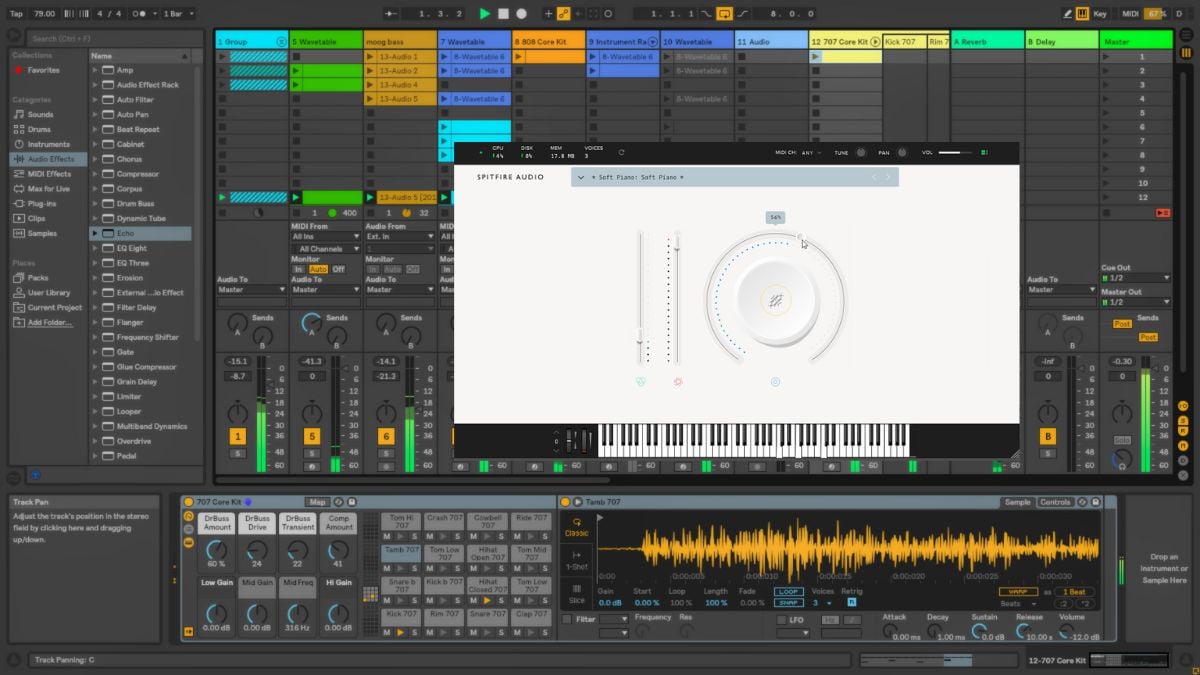
5. Spitfire LABS (Soft Piano)
- Type:Piano VST instrument (free ecosystem)
- Engine:Sampled “soft” piano texture (gentle, intimate tone).
- Pricing:Free (LABS ecosystem access).
- Best for:Emotional pads/underscore piano that doesn’t fight vocals.
- Performance note:Usually lighter than flagship piano libraries.
Synth VSTs (starter Picks + Sound Design Depth)
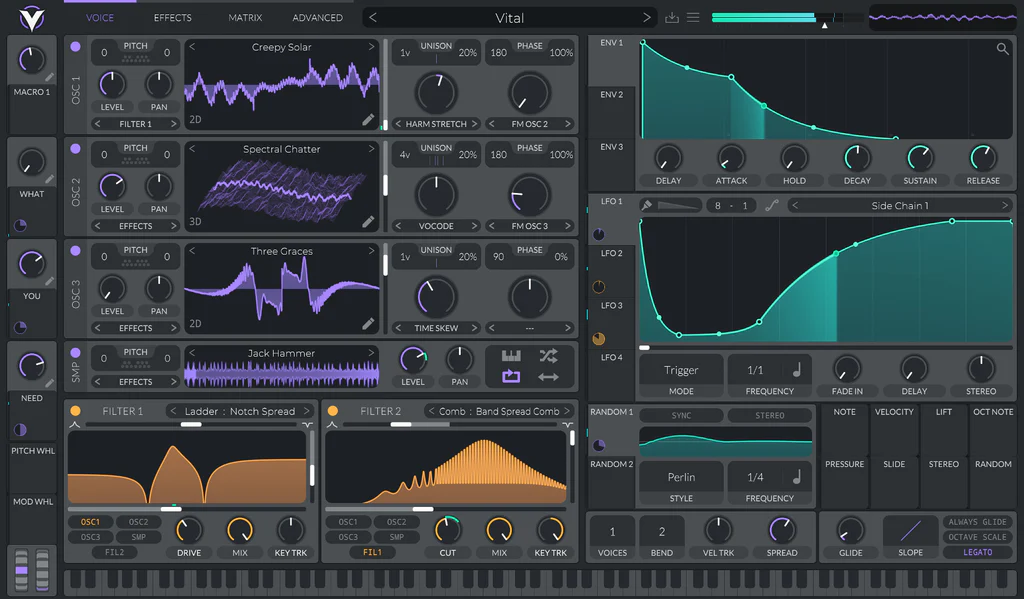
6. Vital
- Type:Synth VST instrument (wavetable)
- Engine:Modern wavetable with deep modulation.
- Pricing:Freemium (strong free tier).
- Best for:Learning sound design and getting modern synth tones on a budget.
- Performance note:CPU depends on voices/unison/FX.
7. Xfer Serum
- Type:Synth VST instrument (wavetable)
- Engine:Deep wavetable workflow with a huge preset ecosystem.
- Pricing:Paid.
- Best for:Pop/EDM/modern scoring sounds that drop into mixes cleanly.
- Performance note:Can get CPU-heavy with dense unison stacks.
8. U-he Diva
- Type:Synth VST instrument (analog-modeled character)
- Engine:Emulates classic analog behaviors and tone.
- Pricing:Paid.
- Best for:“Played” synth parts-pads, basses, poly keys with personality.
- Performance note:Known for higher CPU demand at quality settings.
9. Arturia Pigments
- Type:Synth VST instrument (hybrid)
- Engine:Multiple synthesis approaches in one UI.
- Pricing:Paid (often discounted).
- Best for:Preset-driven inspiration plus deep modulation when you’re ready.
- Performance note:Moderate CPU; heavy patches can climb.
10. Surge XT
- Type:Synth VST instrument (multi-synthesis)
- Engine:Feature-rich, community-driven synthesizer.
- Pricing:Free/open-source.
- Best for:Serious synthesis depth without paying.
- Performance note:Patch-dependent; generally efficient for the feature set.
Drum VSTs (pads-friendly Options)
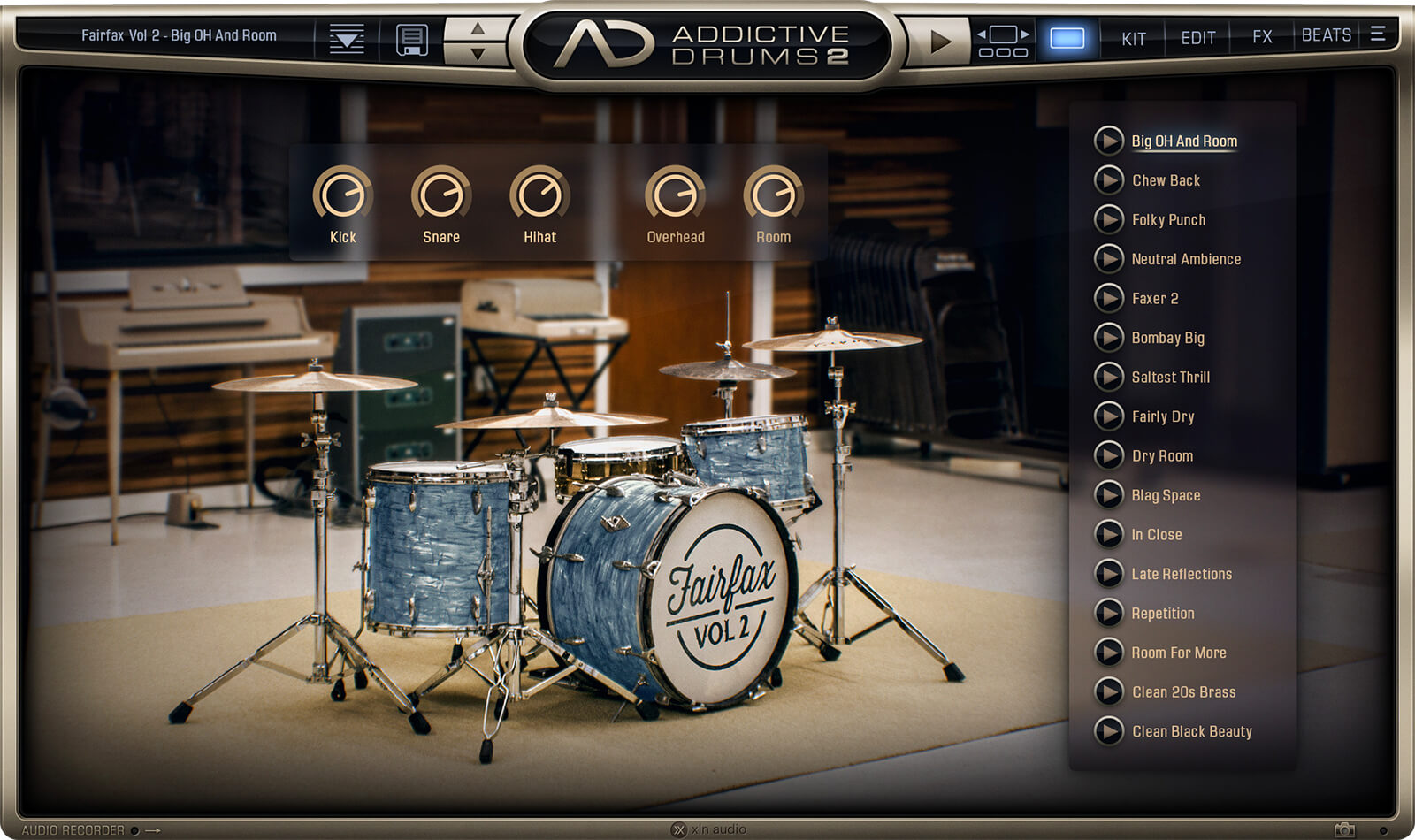
11. XLN Addictive Drums 2
- Type:Drum VST instrument
- Engine:Acoustic drums designed for songwriting speed.
- Pricing:Paid (expansion ecosystem).
- Best for:Getting realistic drums quickly, then routing/mixing later.
- Performance note:Expansion libraries increase disk footprint.
- Website:XLN Addictive Drums 2
12. Toontrack EZdrummer
- Type:Drum VST instrument
- Engine:Groove-first drum workflow (writing + sounds).
- Pricing:Paid (expansion ecosystem).
- Best for:Building songs fast with grooves and editable MIDI.
- Performance note:Library size grows with expansions; very workflow-driven.
13. Native Instruments Battery
- Type:Drum sampler VST instrument
- Engine:Cell-based drum sampler for one-shots/kits.
- Pricing:Paid (often bundled in Komplete).
- Best for:Custom kits, finger drumming, electronic drums, and quick rearranging.
- Performance note:Disk-light unless you collect huge sample folders.
14. MT Power Drum Kit
- Type:Drum VST instrument
- Engine:Free acoustic kit sampler.
- Pricing:Free.
- Best for:A simple acoustic kit when you need “good enough” drums now.
- Performance note:Lightweight compared with large commercial libraries.
- Website:MT Power Drum Kit
15. Sitala
- Type:Drum sampler VST instrument
- Engine:Fast 16-pad sampler workflow.
- Pricing:Free/paid variants depending on version.
- Best for:Drag-and-drop one-shots and quick pad mapping.
- Performance note:Your sample library determines disk use.
Orchestral / Strings VSTs (lightweight Vs Deep Libraries)
16. Spitfire BBC Symphony Orchestra Discover
- Type:Orchestral VST instrument/library
- Engine:Entry-level orchestral library designed for learning and sketching.
- Pricing:Often free/low-cost access model depending on current offer structure.
- Best for:“First orchestra” sounds without a massive rig.
- Performance note:Lighter than full orchestral suites; still benefits from SSD.
17. Spitfire LABS (strings/pads)
- Type:Texture instruments (strings/pads-style)
- Engine:Sketch-friendly sampled textures.
- Pricing:Free (LABS ecosystem).
- Best for:Layering behind piano/synth to add emotion quickly.
- Performance note:Usually lightweight.
18. EastWest Hollywood Orchestra (Opus)
- Type:Orchestral library platform
- Engine:Cinematic orchestral ecosystem in the Opus engine.
- Pricing:Paid (often subscription options).
- Best for:Film/game composing where articulation depth matters.
- Performance note:Typically heavy on disk/RAM; SSD strongly recommended.
19. Vienna Symphonic Library (Synchron Player / VSL Instruments)
- Type:Orchestral libraries + player
- Engine:Detailed orchestral tools in Synchron Player.
- Pricing:Paid (varies by collection).
- Best for:Precision orchestration and deep articulation control.
- Performance note:Range from moderate to heavy depending on libraries.
20. Kontakt Orchestral Libraries (Native Instruments + Third-party)
- Type:Orchestral libraries hosted in Kontakt
- Engine:Broad ecosystem-strings/brass/woodwinds/perc in many styles.
- Pricing:Paid libraries; wide budget range.
- Best for:Building an orchestral palette piece-by-piece.
- Performance note:Disk/RAM depends on the specific library and mic choices.
MIDI FX VSTs (arp, Chord, Scaler, Sequencer, MIDI Utilities)
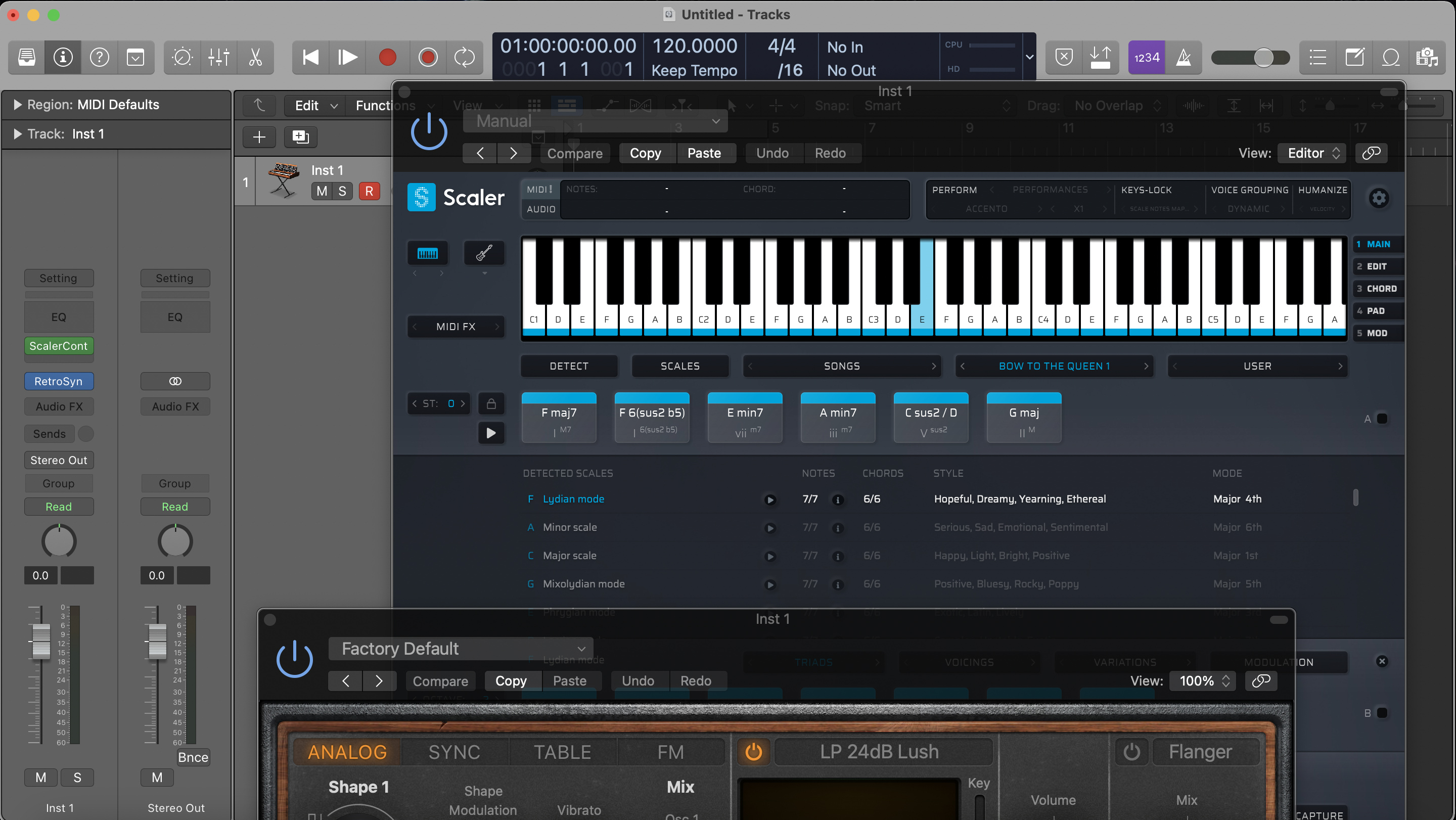
21. Scaler 2
- Type:MIDI FX (harmony tool)
- What it does:Chords, scales, progressions, voicings-turns “I’m stuck” into playable harmony.
- Pricing:Paid.
- Best for:Keyboard players who want faster songwriting harmony decisions.
- Performance note:Light CPU; it’s MIDI logic, not heavy audio.
22. Xfer Cthulhu
- Type:MIDI FX (chords + arps)
- What it does:Drives synths with chord sets and arpeggiation patterns.
- Pricing:Paid.
- Best for:EDM/pop writing where rhythmic motion is the vibe.
- Performance note:Light; the synth you drive will be the CPU hog.
23. Captain Plugins (Captain Chords, Etc.)
- Type:MIDI songwriting suite
- What it does:Guided chords/melodies/basslines with a “finish the song” mindset.
- Pricing:Paid.
- Best for:Beginners who want structured writing assistance.
- Performance note:Generally light; depends on which instruments you host.
24. DAW Built-ins (often Enough For Beginners)
- Type:Built-in MIDI FX
- What it does:Arps/chords/scale tools inside your DAW (Ableton/Logic/etc.).
- Pricing:Included with your DAW.
- Best for:Lowest friction and best stability-master these before buying more.
- Performance note:Usually optimized and efficient.
Essential Effects For Keys (reverb, Delay, Compression, EQ)
25. Valhalla Supermassive
- Type:Reverb/delay effect
- Pricing:Free.
- Best for:Huge ambient space on pads, synths, and cinematic piano.
- Performance note:Generally efficient; extreme modes can add CPU.
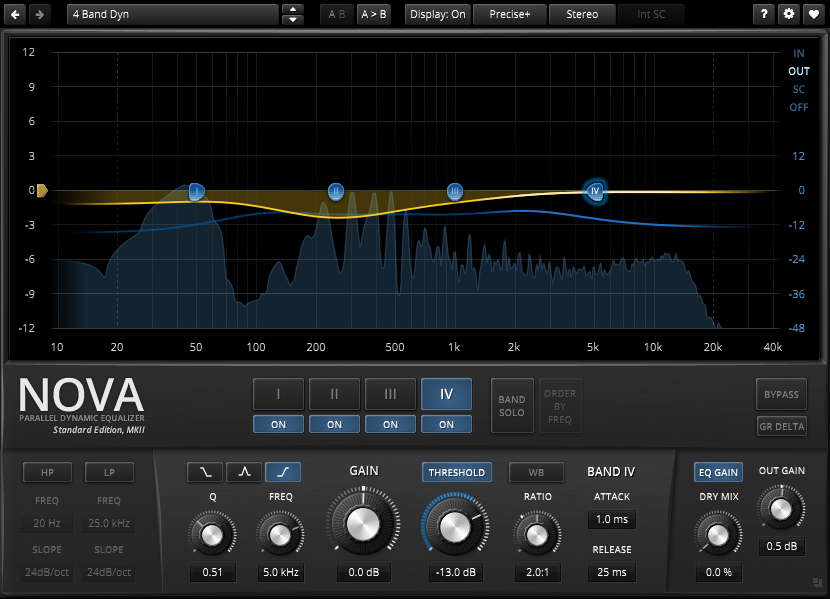
26. TDR Nova
- Type:Dynamic EQ
- Pricing:Free tier + paid edition.
- Best for:Taming harsh notes or boomy resonances without dulling your whole tone.
- Performance note:Light-to-moderate; very usable on many tracks.
27. Voxengo SPAN
- Type:Spectrum analyzer
- Pricing:Free.
- Best for:Learning EQ decisions (seeing where your keys fight bass/vocals).
- Performance note:Minimal CPU.
28. TAL-Reverb
- Type:Reverb effect
- Pricing:Often free/low-cost depending on version.
- Best for:Quick, musical reverb when you don’t want 50 parameters.
- Performance note:Usually lightweight.
29. Your Stock DAW Reverb/EQ
- Type:Effects (built-in)
- Pricing:Included.
- Best for:Reliability and speed-perfect while you’re learning.
- Performance note:Often the most CPU-efficient option you own.
Takeaway:Pick one instrument you’ll play daily plus one reverb and one EQ-next we’ll make sure you get them safely and cleanly installed.
Free Vs Paid VSTs (and How To Download Safely)
You’ll leave this section knowing how to find legit free options without rolling the dice on sketchy downloads-because “free VST download” searches can lead to fake installers and unwanted extras.
Safe Download Checklist (official Sites, Reputable Stores, System Prompts)
Use this every time you grab a plugin-free or paid:
- Download from the original developer sourceor a trusted store (this aligns with CISA-style recommendations).
- Avoid “mirrors” that repackage installers.
- Prefer installers that are clearly verified by your OS (when applicable).
- Keep OS security features enabled (macOS Gatekeeper, Windows SmartScreen).
- If something feels off-pop-ups, forced add-ons, weird redirects-stop.
Expert’s take:I treat “free download” as a sourcing problem, not a plugin problem. If the source isn’t clearly the developer (or a trusted store), it’s not worth the cleanup.
Red Flags To Avoid (bundlers, “cracked,” Suspicious Mirrors)
- Anything labeled cracked, keygen, “serial unlock,” or “full version free”
- Installers that push unrelated toolbars/extensions
- Multiple fake “Download” buttons and countdown traps
- “Reuploads” with no real developer website or docs
Where People Find Legit Freebies (directories + Communities)
Directories and forums can be good for discovery, but the safest rule stays the same: use them to find names, then download from the official developer page.
Free can be excellent-but only when the download path is clean; next we’ll make your DAW actually recognize what you install.
Install & Get Your DAW To Find Plugins (without Headaches)
You’ll leave this section able to install a plugin once and avoid the “why isn’t it showing up?” loop. Most installation problems come down to formatand scan path.
Plugin Formats By Platform (VST/VST3 Vs AU Vs AAX)
Think of plugin formats like connectors. Your DAW can only “plug in” to what it supports:
- VST/VST3:common on Windows and also used on macOS in many hosts
- AU:Apple’s macOS plugin architecture (common in Logic)
- AAX:Pro Tools’ plugin format (Avid)
VST2 Vs VST3 (what To Install First)
When you have a choice, install VST3first. Keep VST2 only when:
- Your DAW is older, or
- A specific plugin you need only ships as VST2
Plugin Scan Paths (what They Are And Where To Set Them)
A scan path is the folder your DAW checks to find plugins.
Best practices:
- Don’t scatter plugins across random folders.
- Keep VST3 in the default system location when possible.
- After installing, run a plugin rescaninside your DAW.
What To Do If The Plugin Still Won’t Show Up (decision Tree)
- Wrong format? (Installed AU but your DAW only scans VST3-or vice versa.)
- Wrong scan path?
- Blocked/quarantined by OS security?
- 64-bit DAW vs 32-bit plugin mismatch?
- Needs a rescan/plugin cache reset?
Once format and scan paths are correct, plugins become predictable-next we’ll map your keyboard so it feels like an instrument.
Map Your MIDI Keyboard Controls Like A Pro
You’ll leave this section able to make knobs, faders, and pedals behave the way you expect-without hunting through menus every session.
MIDI Learn Basics (knobs, Faders, Pads)
Most DAWs and many plugins support MIDI Learn:
- Click the on-screen parameter (filter, reverb mix, volume).
- Enable MIDI Learn (if needed).
- Move the physical control (knob/fader/pad).
- Save the mapping.
If you do only one thing: map one knobto something expressive (filter cutoff or brightness). It immediately makes playing feel more musical.
Common Mappings For Keyboard Players (mod Wheel, Expression, Sustain)
Start with these high-leverage assignments:
- Sustain pedal → sustain/hold (piano) or ambient hold (pads)
- Mod wheel → vibrato/brightness/filter movement
- Expression pedal → volume/dynamics (especially orchestral)
Save Templates So You Don’t Redo Work Every Project
Create one reusable starting point:
- A DAW template with your favorite instrument loaded
- Your input/output already configured
- Your top mappings saved
Takeaway:Mappings give you control; next we’ll fix the two things that ruin control fastest-no sound and latency.
Troubleshooting: No Sound, Latency, Crackles, Stuck Notes
You’ll leave this section with a practical checklist you can run in under a minute. Troubleshooting is easier when you isolate whether the problem is MIDI input, sound generation, or audio output.
No Sound Checklist (input, Track, Monitoring, Instrument Loaded)
If you see MIDI activity but hear nothing, check these in order:
- Is your keyboard selected as the MIDI input device?
- Did you load a VST instrument(not just an effect)?
- Is the track armed/monitoring enabled (DAW dependent)?
- Is your audio output set to the correct speakers/headphones/interface?
- Is the instrument’s volume/preset actually audible?
If you want to confirm your controller is sending MIDI, try an online midi pianoto see note input before blaming your DAW.
Latency Fixes (buffer Size, Drivers, Interface Basics)
Latency is the delay between pressing a key and hearing sound. To reduce it:
- Lower your buffer size (too low can cause crackles).
- Use a driver designed for low-latency performance (ASIO is the common standard on Windows).
- If you need stable real-time playability, an audio interface often helps.
CPU/RAM Tips For Heavy Instruments And Sample Libraries
If your system chokes on big pianos or orchestral libraries:
- Use “lite” patches and fewer mic positions.
- Freeze/render tracks when you’re done playing them live.
- Close heavy background apps (sample libraries love RAM).
- Raise buffer size when mixing instead of performing.
Takeaway:Once your system is stable and responsive, you can build a reliable “default rig”-and that’s what we’ll do next.
The “best First Setup” For Most People (minimal Gear, Maximum Results)
You’ll leave this section with a repeatable starter setup that works for most MIDI keyboardplayers-without overspending.
One Instrument + Two Effects (a Practical Starter Stack)
If you want a setup that covers a lot of music:
- One main instrument:a piano VST or a versatile synth
- One reverb:space and realism
- One EQ:reduce muddiness and shape tone
That’s it. A common mistake I see is starting with 25 plugins and no muscle memory. A simple stack helps you learn faster because every adjustment becomes repeatable.
Upgrade Path (when To Buy Paid Instruments Or An Audio Interface)
Upgrade when you can name the limitation clearly:
- “I need a more realistic piano feel” → upgrade your piano instrument
- “I want deeper synth control” → upgrade your synth choice
- “Latency still bothers me” → audio interface + better driver setup
Takeaway:You now have a full system-from choosing to installing to troubleshooting-so let’s lock in the most common questions in a quick FAQ.
Key Questions Answered (FAQ)
What Does VST Stand For?
VST stands for Virtual Studio Technology-plugins that add instruments or effects inside a DAW/host (originally created by Steinberg).
What Is A VST?
A VST is a plug-in that runs inside a host application to generate sound (instrument) or process sound (effect).
Do I Need A VST For A MIDI Keyboard?
If your keyboard has no built-in sounds, yes-you need a host plus an instrument to turn MIDI performance data into audio.
Why Is My MIDI Keyboard Not Making Sound?
Usually because no instrument is loaded, monitoring is off, or your audio output is wrong. MIDI activity alone doesn’t produce sound.
Is The VST Plugin Free?
Some are free, others paid. Prioritize official sources and trusted stores, and avoid cracked installers and repackaged downloads.
What Is The Best VST Library?
“Best” depends on your goal: realistic piano, synth sound design, quick drums, or orchestral articulations. Start with one flagship tool you’ll actually use.
What’s The Best Free Piano VST For A MIDI Keyboard?
A reliable starting point is a reputable free option like LABS Soft Piano (or your DAW’s included instruments), then upgrade when you outgrow it.
What’s The Difference Between VST2 And VST3?
VST3 is newer and widely supported. Install VST3 first unless your DAW or a specific plugin requires VST2.
How Do I Install A VST Plugin?
Install from the official source, make sure your DAW scans the correct plugin folder, then rescan plugins inside the DAW.
Why Isn’t My Plugin Showing Up In My DAW?
Common causes: wrong plugin format, wrong scan path, OS security blocking the plugin, or a 64-bit/32-bit mismatch.
Can I Use VSTs Without A DAW?
Sometimes-many instruments offer standalone versions, and there are lightweight plugin hosts. A DAW is still the easiest all-in-one workflow.
How Do I Map Knobs And Pads On My MIDI Keyboard?
Use MIDI Learn: click a parameter, move the knob/pad, then save the mapping as a preset or template.
How Do I Reduce Latency When Playing VSTs?
Lower buffer size while performing, use the correct driver, and consider an audio interface if you want consistent real-time playability.
Are “free VST Download” Sites Safe?
Many are not. Stick to official developer sources/trusted stores and avoid cracked or bundled installers.
What VSTs Should A Beginner Start With?
One instrument you love + one reverb + one EQ. Learn those deeply before collecting more.
Quick Recap
The fastest way to win with a MIDI keyboard is to stop thinking “keyboard = sound” and start thinking “keyboard = instructions.” When you load a VST instrument inside a host and route audio correctly, your setup becomes predictable and fun.
If you do only three things: pick one instrument you’ll play daily, download it from a trusted source, and save a template with your mappings. That combination turns “messy experimenting” into a reliable instrument you can sit down and play.
If this helped, share it with a friend who’s stuck on “my MIDI keyboard has no sound.” That one insight saves hours.