
You have a MIDI keyboard sitting on your desk and an online piano open in your browser. Connecting the two should be straightforward, but the moment you press a key and nothing happens, the experience quickly becomes frustrating.
You are not just dealing with hardware; you are dealing with browser security, web permissions, and a specialized technology called the Web MIDI API. Connecting your keyboard to a website is not quite the same as plugging it into a dedicated recording app.
My goal is to take the guesswork out of this for you. I want to move you past the silent keys phase and get you playing. We are going to look at this through a three-layer lens: getting the physical connection right, making sure your browser is actually listening, and finally, telling the website which device to use.
What You Will Learn
- How the three-layer connection system works and why understanding it solves most problems.
- Which browsers support MIDI keyboards, and which ones do not
- How to connect both modern USB keyboards and older keyboards using adapters
- What to do on Windows, Mac, and Chromebook when your keyboard is not recognised
- How to reduce latency so your online piano feels responsive and natural to play
Understanding How The Connection Works: The Three-Layer System
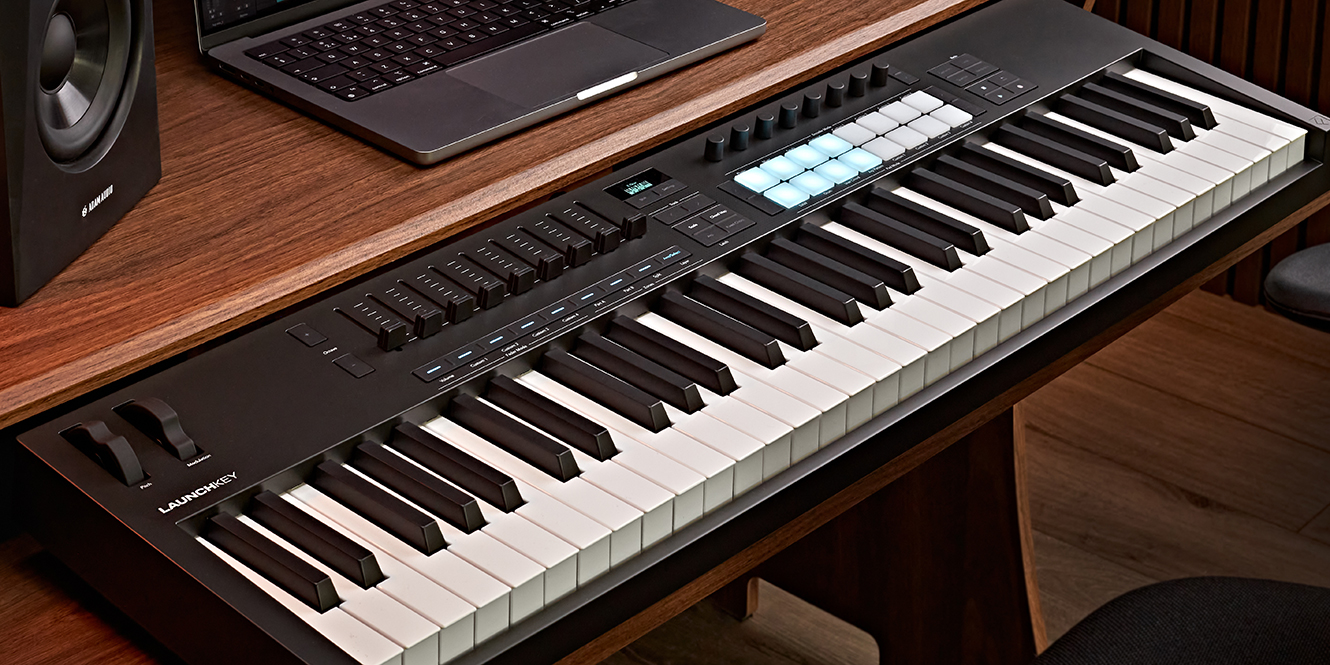
Before touching a single cable, it helps to understand what the connection between your MIDI keyboard and an online piano actually involves. Most problems occur because one of three layers is misconfigured, and knowing which layer to fix saves considerable time.
Layer One: The Hardware Connection
The first layer is the physical connection between your keyboard and your computer. Most modern MIDI keyboards connect via USB, which carries both power and MIDI data through a single cable. When you plug the keyboard in, your operating system detects it as a MIDI device.
This layer either works or it does not. If your operating system recognises the keyboard, the hardware layer is functioning correctly. If it does not, the problem is either a cable issue, a driver issue, or a keyboard that requires additional setup before the operating system can communicate with it.
Checking this layer first saves you from spending time adjusting browser settings when the problem is actually something much simpler.
Layer Two: The Browser And The Web MIDI API
The second layer is your browser and its ability to communicate with MIDI devices. Websites access your MIDI keyboard through a technology called the Web MIDI API, a browser feature that allows web pages to send and receive MIDI data from connected devices.
Not every browser supports the Web MIDI API. Google Chrome and Microsoft Edge support it natively. Firefox and Safari do not, which means if you are using either of those browsers, your online piano will never detect your keyboard, regardless of how correctly everything else is set up.
This is one of the most common and most overlooked causes of failed connections. Switching to Chrome or Edge immediately resolves it.
Layer Three: Platform Permission And Configuration
The third layer is the online piano platform itself and the browser permission it requires to access your MIDI device. Even in Chrome, a website cannot use your MIDI keyboard without your explicit permission. This permission prompt appears the first time you visit a MIDI-enabled platform.
If you declined the permission at some point, dismissed the prompt accidentally, or cleared your browser permissions, the platform will not receive any MIDI input until the permission is granted again. This is easy to fix, but equally easy to miss if you do not know it is required.
Once all three layers are functioning correctly, your keyboard and your online piano will communicate seamlessly.
What You Need Before You Start
Getting the setup right from the beginning is faster than troubleshooting afterward. A few checks before you connect anything will prevent the most common problems.
MIDI Keyboard Types And Connection Ports

The Best Midi Keyboards and Controllers REVIEWED | Ditto Music
Most MIDI keyboards made in the last ten years connect to a computer via USB. The keyboard typically has a USB-B port, the square-shaped connector, and your computer has a USB-A port, the standard rectangular one. Some newer keyboards use USB-C on both ends.
Older keyboards, particularly those made before USB became standard, use traditional five-pin DIN MIDI connectors. These keyboards have a MIDI Out port and sometimes a MIDI In port. They cannot connect directly to a modern computer without an adapter.
Knowing which type of connection your keyboard has tells you immediately whether you need an additional adapter or whether a standard USB cable is all that is required.
The Right Cable For Your Keyboard
For USB keyboards, you need a USB-A to USB-B cable or a USB-C cable, depending on your keyboard model. Many keyboards include this cable in the box. If yours did not, or if the cable has been lost, any standard USB cable of the correct type will work.
For older keyboards with five-pin DIN connectors, you need a MIDI-to-USB adapter. These are widely available and inexpensive. They have a five-pin DIN connector on one end that plugs into your keyboard's MIDI Out port, and a USB connector on the other end that plugs into your computer.
Using the wrong cable or a damaged cable is a surprisingly common cause of connection failure that is worth checking before anything else.
Which Browser To Use
Use Google Chrome or Microsoft Edge. Both support the Web MIDI API natively and are free to download. Chrome is the more widely tested of the two across different online piano platforms, and most platform documentation specifically references Chrome in their setup instructions.
If you are currently using Firefox or Safari, switching to Chrome takes two minutes and immediately resolves any browser-level compatibility issues. No workaround for Firefox or Safari matches the reliability of Chrome or Edge.
Keep your browser updated to its latest version. Outdated browser versions occasionally have issues with MIDI permission handling that are resolved in newer releases.
See Also: Best Websites To Get MIDI
Step-by-Step: Connecting Your MIDI Keyboard To An Online Piano
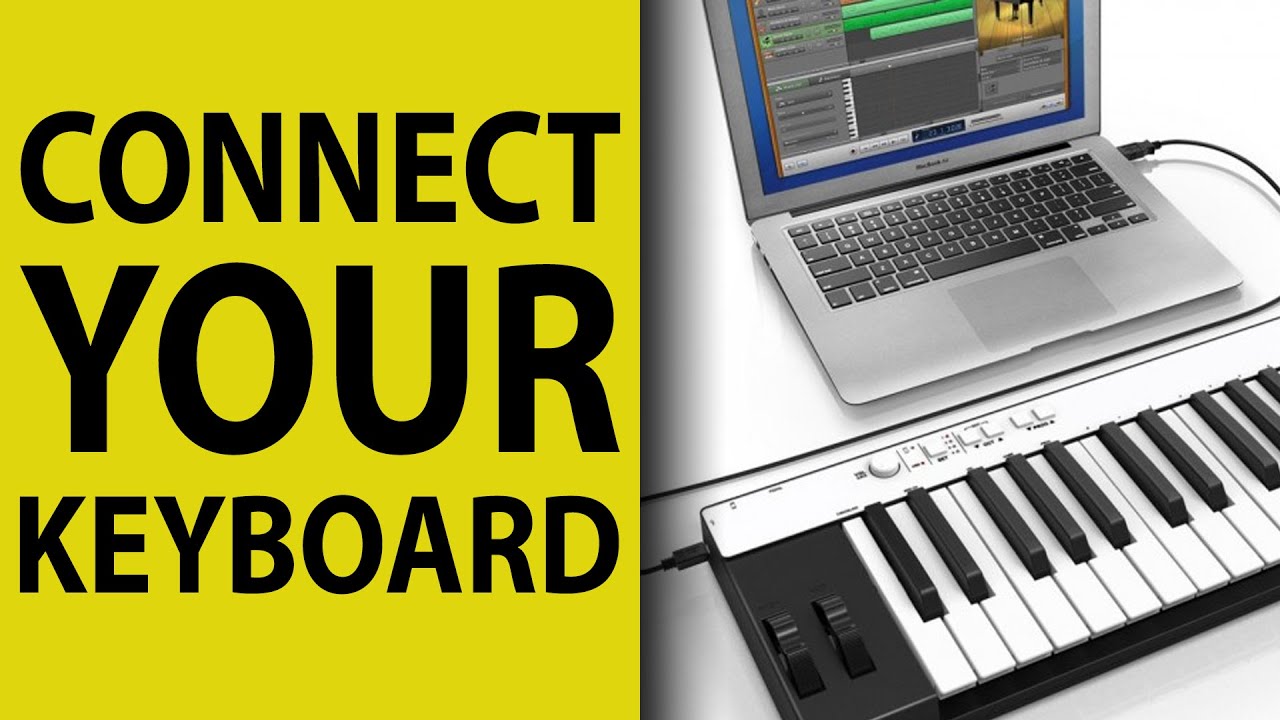
How to Connect a MIDI Keyboard to a Computer
With the right cable and the right browser in place, the connection process itself is straightforward. Follow these steps in order.
Step 1: Connect Your Keyboard To Your Computer
Plug your keyboard into your computer using the appropriate USB cable. On Windows, you may see a notification that the device is being set up. On Mac, no notification appears, but the system registers the device silently. On a Chromebook, a brief notification confirms the device has been detected.
Wait a few seconds after connecting before opening your browser. Some keyboards take a moment to complete their initial handshake with the operating system, and opening the browser immediately can occasionally result in the device not being listed correctly.
If your operating system does not recognise the keyboard at all, check the cable, try a different USB port, and consult the driver section below before proceeding.
Step 2: Open Chrome Or Edge And Navigate To Your Platform
Open Chrome or Edge and go to your chosen online piano platform. Popular options include Virtual Piano, Piano Marvel, Playground Sessions, and OnlinePianist. Each handles MIDI permission slightly differently, but the underlying process is the same across all of them.
Make sure your keyboard is connected before you open the platform. Some platforms only scan for MIDI devices when the page loads. If you connect your keyboard after the page is already open, you may need to refresh the page before the platform detects it.
This is a small but frequently missed detail that confuses when the keyboard appears connected, but the platform shows no input.
Step 3: Grant MIDI Permission In Your Browser
When you first visit a MIDI-enabled platform in Chrome or Edge, a permission prompt appears in the browser's address bar area asking whether you want to allow the site to use MIDI devices. Click Allow.
If the prompt does not appear automatically, look for a small icon in the address bar, typically a keyboard or lock icon, and click it to manage site permissions manually. Find the MIDI permission and set it to Allow, then refresh the page.
If you have visited the site before and previously denied permission, you will need to reset it through the browser's site settings before the prompt reappears.
Step 4: Test Your Connection
Before playing, press a few keys on your keyboard and watch the on-screen piano keyson the platform. They should light up or respond visually in real time. If they do, your connection is working correctly across all three layers.
If nothing happens, the troubleshooting section below covers every common cause systematically. Do not adjust multiple things at once when troubleshooting: change one variable at a time and test after each change.
A useful first test is to visit midi.city in Chrome before opening your piano platform. This site detects and displays MIDI input directly and confirms whether your browser is receiving keyboard data at all.
Operating System Considerations
The connection process is broadly the same across operating systems, but each one has specific behaviours worth knowing before you run into them.
Windows: When You Need Drivers And When You Do Not
Windows does not include universal MIDI drivers in the same way Mac does. Whether your keyboard works without additional software depends on whether it is USB Class Compliant, meaning it follows a standard that allows the operating system to communicate with it using built-in drivers.
Most modern keyboards from major manufacturers, including Roland, Yamaha, Korg, and Arturia, are USB Class Compliant and work on Windows without additional installation. If your keyboard is not Class Compliant, or if Windows does not recognise it automatically, you need to download and install the manufacturer's MIDI driver from their official website.
After installing drivers, restart your computer before testing again. Skipping the restart is a common reason driver installations appear to fail when they have actually succeeded.
Mac: Native MIDI Support And What It Means
Mac includes native MIDI support through its Core MIDI framework, which means most USB Class Compliant keyboardswork immediately on Mac without any driver installation. Plug in the keyboard, and the operating system handles the rest silently and reliably.
You can verify that Mac has recognised your keyboard by opening the Audio MIDI Setup application, found in Applications under Utilities. If your keyboard appears in the MIDI Studio window, it is connected correctly and ready for browser access.
Mac's native MIDI handling is one of the reasons musicians often find the Mac setup process faster and less troublesome than Windows, particularly for users connecting a keyboard for the first time.
Chromebook: The Simplest Setup Of All
Chromebook handles USB MIDI natively through Chrome, making it the simplest operating system for this particular setup. Connect your keyboard via USB, open Chrome, navigate to your platform, and grant permission when prompted. No drivers, no additional software, no system configuration required.
The limitation of Chromebooks is that you are restricted to browser-based platforms. There is no option to install a standalone music application or a DAW, which matters only if you eventually want to move beyond browser-based piano tools.
For the specific purpose of connecting a MIDI keyboard to an online piano, Chromebook offers the most friction-free experience of any platform.
Connecting Older MIDI Keyboards Without USB
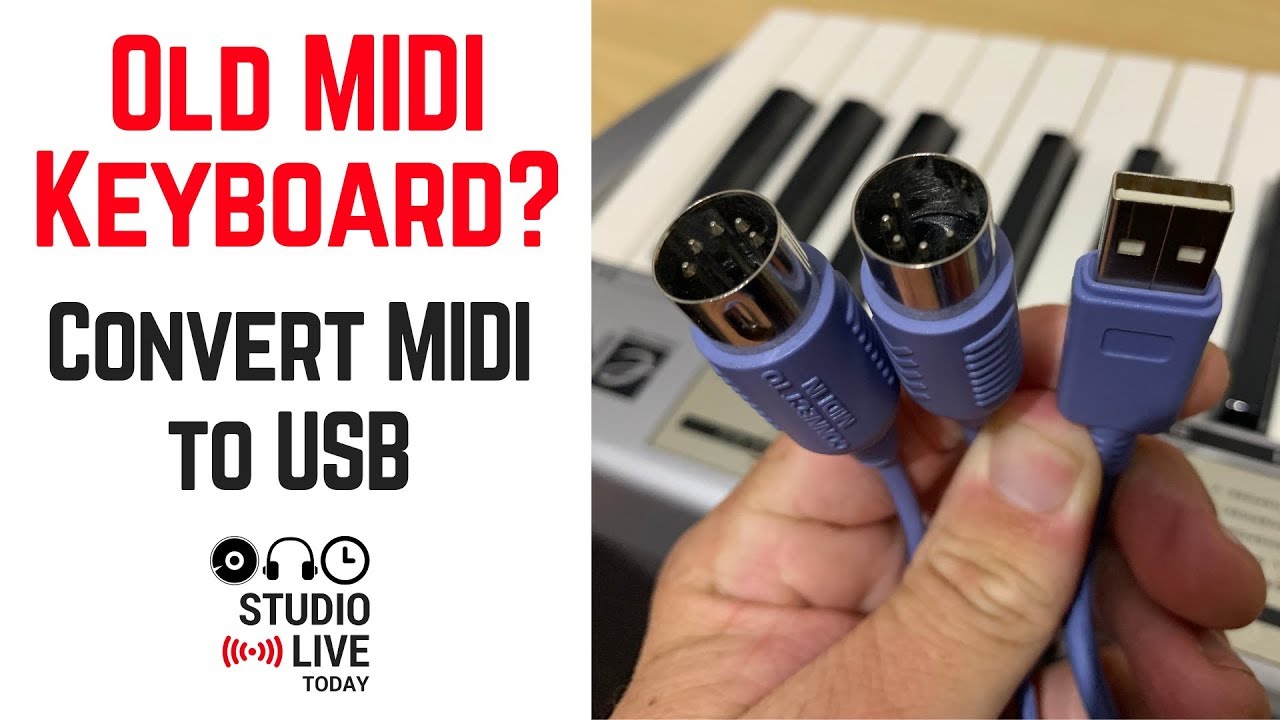
How to connect older MIDI keyboards to USB (MIDI to USB cable)
Not every MIDI keyboard has a USB port. Keyboards made before USB became standard, and some professional-grade instruments that prioritise traditional connectivity, use five-pin DIN MIDI connectors. These keyboards can still connect to an online piano with the right adapter.
What A MIDI-to-USB Adapter Does
A MIDI-to-USB adapter converts the five-pin DIN MIDI signal from your keyboard into a USB signal that your computer can read. One end of the adapter has a five-pin DIN connector that plugs into your keyboard's MIDI Out port. The other end has a USB connector that plugs into your computer.
The adapter appears to your computer as a standard MIDI device, which means once it is connected, the browser treats it the same as a direct USB MIDI keyboard. The Web MIDI API does not distinguish between the two connection types.
Quality varies significantly between adapters. Cheap, unbranded adapters sometimes introduce additional latency or fail to be recognised on certain operating systems. Adapters from Roland, Korg, and M-Audio are reliably compatible and worth the small additional cost.
How To Set Up A MIDI-to-USB Adapter
The setup process for a MIDI-to-USB adapter follows the same three-layer system as a direct USB connection:
- Connect the five-pin DIN end of the adapter to your keyboard's MIDI Outport
- Connect the USB end to your computer
- Allow a moment for the operating system to detect the adapter
- Open Chrome or Edge and navigate to your online piano platform
- Grant MIDI permission when prompted and test the connection
One critical detail: connect to the MIDI Out port on your keyboard, not the MIDI In port. The MIDI Out port sends data from the keyboard to the computer. The MIDI In port receives data from the computer to the keyboard. Using the wrong port is one of the most common adapter setup mistakes.
Common Adapter Issues And How To Fix Them
If your adapter is not recognised, try a different USB port on your computer. Adapters occasionally have compatibility issues with specific USB ports, particularly USB hubs. Connecting directly to a port on the computer itself, rather than through a hub, resolves this in most cases.
On Windows, some older adapters require a driver installation. Check the manufacturer's website for a driver specific to your operating system version. Generic drivers for Roland UM-ONE and similar adapters are widely available and compatible with most standard five-pin DIN setups.
If the adapter is recognised but produces no sound, confirm that your keyboard is powered on and that the MIDI Out indicator or activity light on the adapter is responding when you press keys.
Platform-Specific Setup Guides
Most online piano platforms handle MIDI input the same way, but each has its own interface for confirming the connection and configuring MIDI settings.
Virtual Piano: MIDI Setup In The Browser
Virtual Piano is one of the most widely used browser-based piano platforms and has straightforward MIDI support. Connect your keyboard, open Virtual Piano in Chrome, and grant MIDI permission when the browser prompts you. The on-screen keys light up immediately when you play.
If Virtual Piano does not respond to your keyboard, check whether you are in the correct playing mode. Some modes within the platform prioritise computer keyboard input over MIDI input. Look for a MIDI or keyboard settings option in the platform's menu and ensure MIDI input is enabled.
Virtual Piano works best in Chrome and has reported inconsistencies in Edge on some setups. If you experience issues in Edge, switching to Chrome is the first thing to try.
Piano Marvel And Playground Sessions: MIDI Configuration
Piano Marvel and Playground Sessions are structured learning platforms that require MIDI keyboard input for their interactive lessons. Both platforms have dedicated MIDI setup screens within their account settings or lesson interfaces.
On Piano Marvel, navigate to the settings or device setup section after logging in. The platform will scan for connected MIDI devices and display your keyboard by name if it is recognised. Select your keyboard from the list and confirm the connection before starting a lesson.
Playground Sessions follows a similar process. If the platform does not detect your keyboard during setup, refresh the page with the keyboard already connected and try the detection process again. Both platforms provide their own troubleshooting documentation for MIDI-specific issues.
Other Online Piano Platforms And What To Expect
Most browser-based piano platformsthat support MIDI input follow the same pattern. If a platform is built on the Web MIDI API, it will work in Chrome and Edge with standard permission granting. If it does not support MIDI at all, no amount of browser or hardware adjustment will add that capability.
Before spending time troubleshooting a platform that is not responding, check the platform's help documentation or FAQ to confirm that it actually supports MIDI keyboard input. Some online piano tools are designed for mouse or computer keyboard input only and have no MIDI functionality built in.
A quick way to check is to look for a MIDI settings option anywhere in the platform's interface. If no such option exists, the platform likely does not support MIDI.
Troubleshooting: Why Your MIDI Keyboard Is Not Working
When something goes wrong, a systematic approach resolves problems faster than trying random fixes. The table below covers every common failure scenario.
- Browser Detection Issues: If the browser fails to see the device, it is likely due to an unsupported browser or Web MIDI API. Switch to Chrome or Edge for better compatibility.
- Missing Permission Prompts: If a prompt never appeared, permissions might have been denied previously, or the page loaded before the device was ready. Reset site permissions in your browser settings, reconnect the hardware, and reload the page.
- Visual Feedback But No Sound: When keys light up on-screen without audio, the output is usually misconfigured or muted. Check the platform volume and browser-specific audio permissions.
- No MIDI Input Signal: If the keyboard is detected but no signal is received, the adapter setup is likely incorrect. Confirm the cable is plugged into the MIDI Out port, not the MIDI In port.
- Windows Recognition Errors: If Windows does not recognize the device, the keyboard is likely non-class-compliant. Download the manufacturer's MIDI driver, then restart your computer to complete the installation.
- Intermittent Connection Drops: Frequent drops usually stem from a faulty cable or interference from a USB hub. Replace the cable or connect the keyboard directly to a USB port on the computer.
- Adapter Recognition Failures: This is often caused by missing drivers or USB port compatibility issues. Try a different USB port or check the adapter manufacturer's website for specific drivers.
- Significant Sound Delay (Latency): High latency in browser audio processing causes a delay. Close background tabs and check the audio buffer settings within your specific platform.
Browser Permission Problems And How To Reset Them
If you previously denied MIDI permission on a platform, the browser will not prompt you again automatically. To reset it, click the padlock icon in Chrome's address bar while on the platform's website.
Find the MIDI permission in the dropdown list and change it from Block to Allow. Refresh the page, and the platform will now have access. In Edge, the same process applies through the padlock or information icon in the address bar.
Site permissions are managed per-site and per-browser, so resetting the permissions in Chrome does not affect Edge settings and vice versa. After resetting the permission, always refresh the page before testing. The new permission setting takes effect only after the page reloads.
Driver Issues On Windows And How To Resolve Them
If Windows does not recognise your keyboard after connecting, open Device Manager by right-clicking the Start menu and selecting it from the list. Look for any device listed with a yellow warning triangle, which indicates a driver problem. If your keyboard appears there, right-click it and select Update Driver.
If the keyboard does not appear in Device Manager at all, the issue may be with the USB cable or port rather than the driver. Try a different cable and a different USB port before downloading any software.
For keyboards that require manufacturer drivers, always download them directly from the manufacturer's official website rather than from third-party driver sites. After installation, restart your computer completely before testing the connection in Chrome.
Reducing MIDI Latency In Your Browser
Latency, the delay between pressing a key and hearing the resulting sound, is the most common performance complaint about browser-based piano platforms. Some latency is unavoidable in a browser environment, but it can be reduced significantly with the right settings.
What Causes Latency In Browser-Based Piano Platforms
Browser-based audio processing adds inherent latency because the browser must handle audio through multiple software layers before it reaches your speakers or headphones. Each layer adds a small delay. The Web Audio API, which most online piano platforms use to generate sound, introduces additional processing overhead on top of the basic MIDI-to-sound chain.
Other factors compound this: background browser tabs consuming CPU resources, slow audio output devices, and platforms that have not optimised their audio buffer settings all contribute to the total delay you experience. On a busy computer with many tabs open, acceptable latency becomes noticeably disruptive.
Understanding what causes latency tells you exactly where to focus your efforts when reducing it.
Practical Steps To Reduce Latency
Apply these steps to reduce latency as much as the browser environment allows:
- Close unnecessary browser tabsbefore playing. Each active tab consumes CPU resources that the audio processing chain needs.
- Use headphones rather than external speakerswhere possible. Bluetooth speakers add their own wireless transmission latency on top of the browser's audio processing delay.
- Check whether your platform has a buffer size or latency settingin its audio options. Smaller buffer sizes reduce latency but require more CPU processing power. If your computer is reasonably modern, a smaller buffer setting will improve responsiveness noticeably.
- Connect your keyboard via USB directly to your computerrather than through a USB hub. Hubs add a small but measurable processing delay.
- Ensure Chrome or Edge is updatedto its latest version, as audio processing improvements are included in browser updates regularly.
Expert's Take
Browser-based MIDI is excellent for casual practice, learning platforms, and exploring online piano tools. For most players connecting a MIDI keyboard to an online piano for the first time, the latency is perfectly acceptable, and the convenience is hard to beat.
Where I have seen it become a genuine issue is with advanced students working on techniques that require immediate tactile feedback, particularly fast passage work or precise timing exercises. If you reach a point where the delay is affecting your ability to play accurately, it is worth exploring a standalone piano app or a lightweight DAW with a dedicated audio interface.
That setup eliminates browser overhead entirely and delivers the near-zero latency that serious practice demands. For everything short of that level, a well-configured browser setup will serve you well.
Frequently Asked Questions
How Do I Connect My MIDI Keyboard To An Online Piano?
Connect your keyboard to your computer via USB, open Chrome or Edge, navigate to your online piano platform, and grant MIDI access permission when the browser prompts you. Ensure your keyboard is connected before the page loads so the platform detects it on startup.
Which Browser Works Best For MIDI Keyboards?
Google Chrome is the most reliable and most widely supported browser for MIDI keyboard connections. Microsoft Edge also works well. Firefox and Safari do not support the Web MIDI API natively and will not detect your keyboard without additional workarounds.
Why Is My MIDI Keyboard Not Recognised By The Browser?
The most common causes are using an unsupported browser, a MIDI permission that was previously denied, a keyboard that requires drivers on Windows, or connecting the keyboard after the page has already loaded. Work through the three-layer system to identify which layer is causing the issue.
Do I Need To Install Drivers For My MIDI Keyboard?
Most modern keyboards are USB Class Compliant and work without drivers on Mac and Chromebook. Windows may require manufacturer-specific drivers for some keyboards. Check the manufacturer's website if Windows does not recognise your keyboard automatically after connecting.
How Do I Connect An Older Keyboard Without A USB Port?
Use a MIDI-to-USB adapter. Connect the five-pin DIN end to your keyboard's MIDI Out port and the USB end to your computer. The adapter appears to your browser as a standard MIDI device and works with any Web MIDI API-enabled online piano platform.
How Do I Fix MIDI Latency When Playing Online?
Close unnecessary browser tabs, use Chrome or Edge, connect via USB directly rather than through a hub, use headphones instead of Bluetooth speakers, and check whether your platform has a buffer size setting that can be reduced. These steps together produce a noticeable improvement in responsiveness.
Can I Use A MIDI Keyboard On A Chromebook?
Yes. Chromebook supports USB MIDI natively through Chrome. Connect your keyboard via USB, open your online piano platform in Chrome, and grant MIDI permission when prompted. No drivers or additional software are required.
How Do I Grant MIDI Permission In Chrome If The Prompt Did Not Appear?
Click the padlock icon in Chrome's address bar while on your piano platform's website. Find the MIDI permission in the dropdown, change it to Allow, and refresh the page. The platform will now have access to your keyboard.
Final Thoughts
Connecting a MIDI keyboard to an online piano is a three-layer process, and almost every problem that stops it from working comes down to one of those layers being misconfigured. The hardware needs to be connected and recognised, the browser needs to be Chrome or Edge, and the platform needs permission to access your MIDI device. When all three are in place, the connection is reliable and immediate.
The most important single piece of advice in this entire guide is to use Chrome. A surprising proportion of connection problems disappear the moment someone switches from Firefox or Safari, and it is always worth confirming the browser first before investigating anything more complex.
Once your keyboard is connected and your platform is responsive, the setup fades into the background, and what remains is the experience of playing. That is exactly where your attention should be.